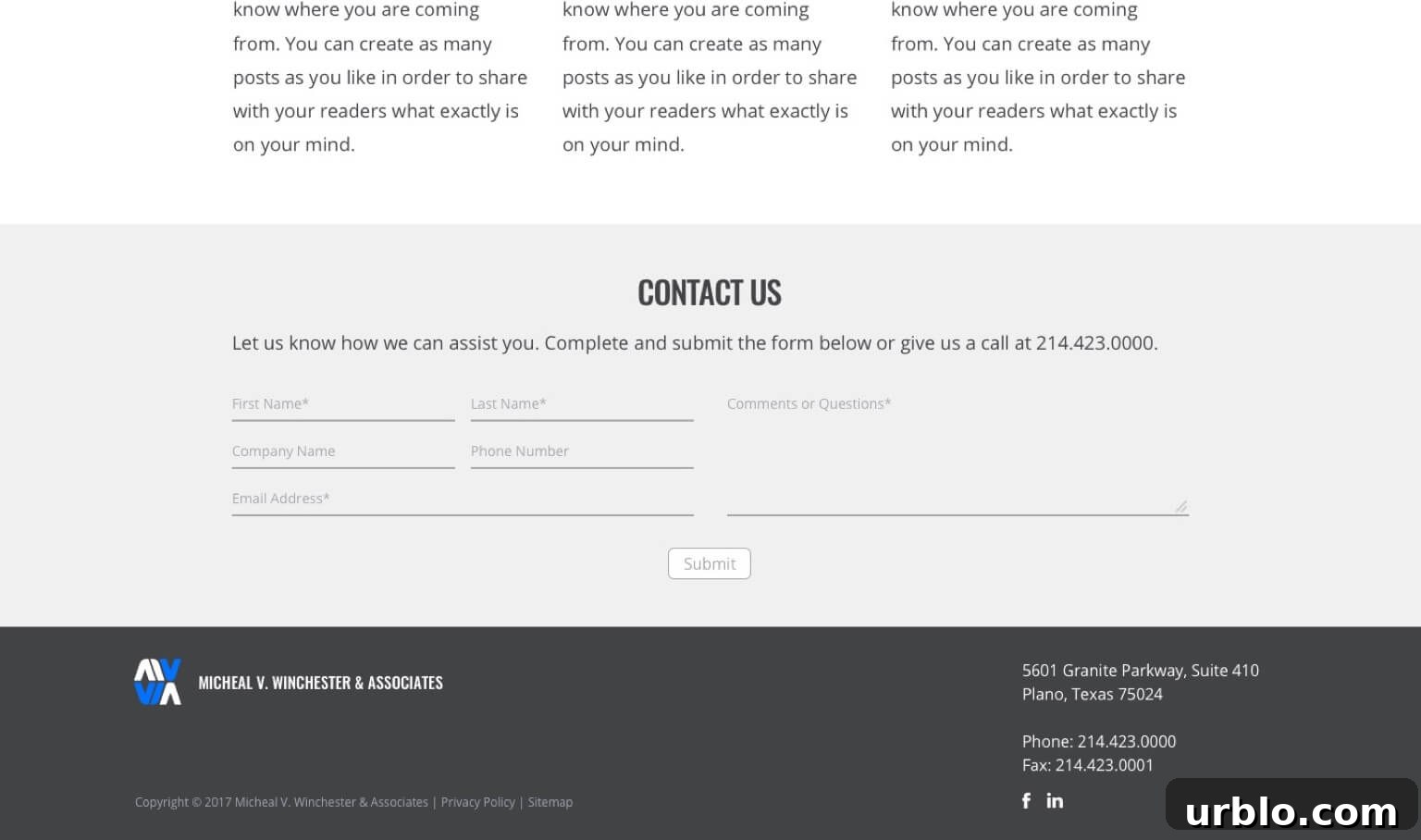
WPForms includes a visual layout builder that lets you place individual fields into columns, but it doesn’t provide an easy way to group multiple fields together inside a single column. When you need a custom two-column layout where several fields are grouped in the left column and another field (for example, a textarea) sits in the right column, you can insert your own markup using WPForms hooks.
To add custom markup around specific fields, use the wpforms_display_field_before and wpforms_display_field_after action hooks. These hooks pass two parameters:
$field— settings for the current field$form_data— settings for the entire form
How it works
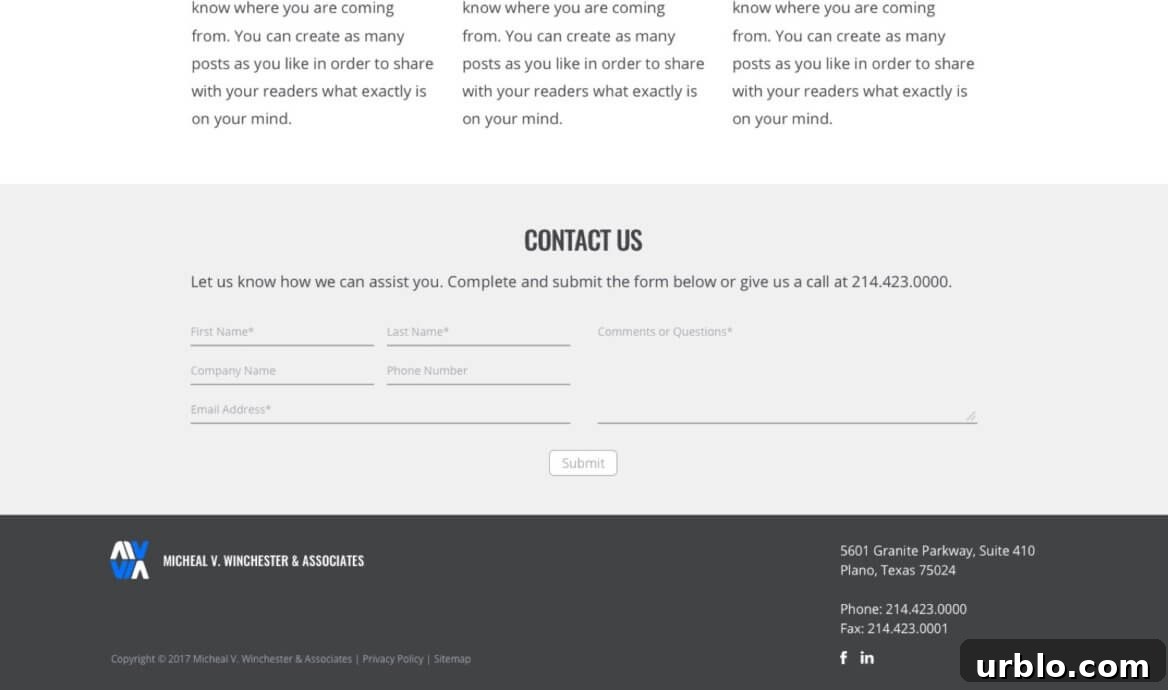
In practice you can open and close wrapper divs around groups of fields by echoing the HTML at precise points in the field rendering process. The example below demonstrates grouping the first several fields into a left column and placing the comments textarea into a right column. The approach uses two small PHP callbacks:
- An “open” callback attached to
wpforms_display_field_beforethat prints the opening wrapper for the left column before the first field, and prints the closing of the left column and the opening of the right column before the comments field. - A “close” callback attached to
wpforms_display_field_afterthat prints the closing wrapper after the comments field.
Wrap this logic so it only applies to a single form by checking $form_data['id']. That prevents markup changes from affecting other forms on the site.
PHP example (concept)
The PHP example below demonstrates the core idea. It checks the form ID, and for specific field IDs outputs the opening and closing wrapper DIVs. Adapt the IDs to match your form’s field IDs.
| function ea_contact_form_two_column_open( $field, $form_data ) { |
| if ( 57 != $form_data[‘id’] ) |
| return; |
| if ( 1 == $field[‘id’] ) |
| echo ‘
‘;
|
| if ( 6 == $field[‘id’] ) |
| echo ‘ |
‘;
Styling the columns
In the example project the author used SASS mixins similar to Bootstrap’s grid system to style the two column layout. The SASS shows two wrappers (.wpforms-field-container-left and .wpforms-field-container-right) each set to span 6 columns at medium screen sizes and above, and 12 columns on small screens. You should adapt the styling to match your site’s CSS framework or custom styles.
Conceptual SASS example:
| .wpforms-container#wpforms-57 { |
| .wpforms-field-container { |
| @include make-row; |
| .wpforms-field-container-left, |
| .wpforms-field-container-right { |
| @include make-sm-column(12); |
| @include make-md-column(6); |
| } |
| } |
| } |
Notes and best practices
- Adjust form and field IDs to match the form you’re customizing.
- Limit markup insertion by checking
$form_data['id']so other forms remain unaffected. - Keep styling responsive—use your theme or framework grid classes so the layout stacks on small screens.
- Test the markup with conditional logic or other WPForms addons to ensure the wrappers don’t interfere with behavior.
Using wpforms_display_field_before and wpforms_display_field_after to inject grouping wrappers is a straightforward way to create multi-field columns that the WPForms visual builder doesn’t provide out of the box. With careful ID checks and matching CSS, you can produce a neat two-column layout that behaves responsively and only applies to the form you intend to change.